Site update warning
Your unsaved creative work is being kept in this browser.
WORKSPACE
Command Center
Your channel learning, Brand Memory, and next creation step at a glance.
Not set up
Saved

Creator SuccessAI
BUILT FOR YOUTUBE CREATORS
Your next video idea.
Ready to publish.
Create title options, descriptions, hooks, and AI thumbnails—all in one place.
Created with Creator Success AI
Your ideas. Your style. See what you can create.
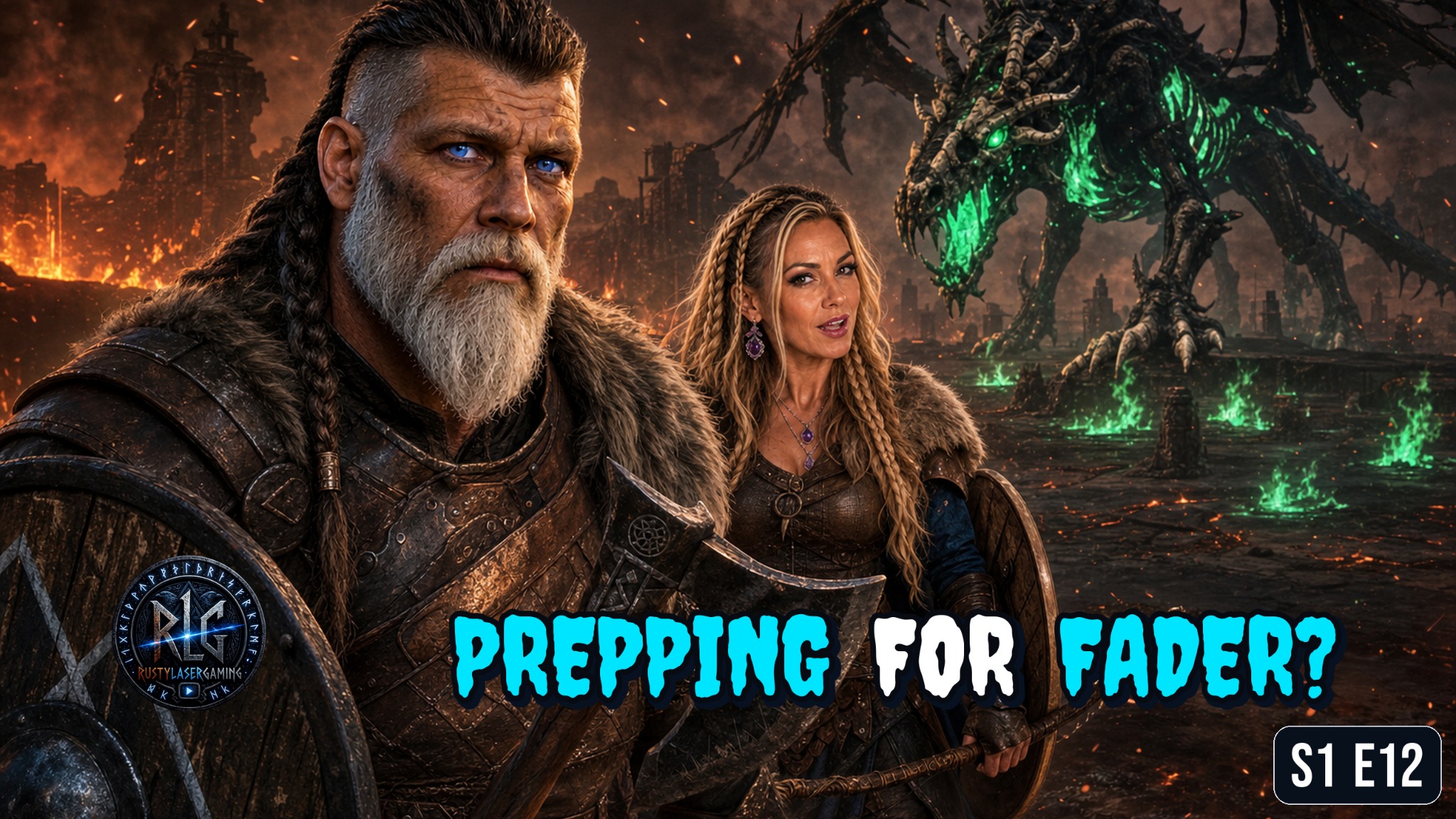
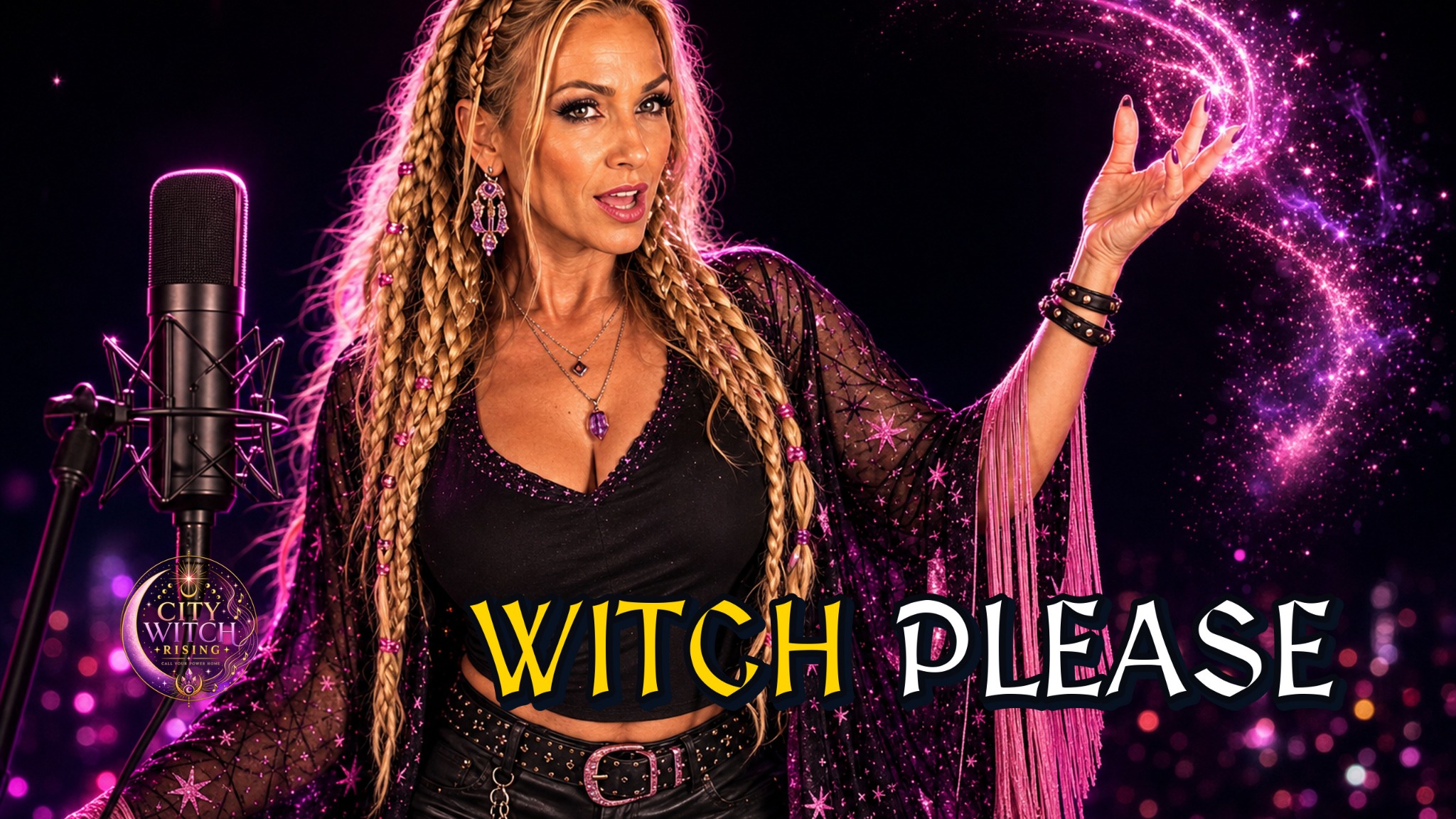

Built by YouTube creators, for YouTube creators.

Creator SuccessAI
Support: hello@creatorsuccessai.com
ACCOUNT STATUS
Workspace unavailable
This workspace is not currently available. Contact hello@creatorsuccessai.com for help.
FIRST-TIME SETUP
Finish setting up your Studio
Complete these steps once, then the checklist will leave your Command Center.
START HERE
Connect and sync YouTube first
The Studio needs your channel history before it can learn what works for your audience.
Tell us what your next stream or video is about.
The Studio uses your channel history and brand memory to create the title, natural description, clickable thumbnail plan, and finished thumbnail.
HOW TO USE
Three steps. Then create.
Creator Success AI works best when it knows your channel and your reusable brand rules. Set those up once, then each new package starts with one brief idea.
That is the whole workflow. Review the title, description, and thumbnail plan before you make the image.
YOUR PROGRESS
Setup checklist
Your saved workspace progress appears here automatically.
OPTIONAL · DESKTOP APP
Open the Studio from your desktop
Install Creator Success AI once, then open it from its own shortcut and app window. Internet is used while you work; the app does not run background sync or notifications when closed.
LEARN MORE
Learn more about the Studio
Choose a topic below for more detail on Brand Memory, writing ideas, thumbnails, credits, or troubleshooting.
Brand MemoryWhat to save, what not to save, and how reference images work.+
Brand Memory is for facts and rules that should stay consistent across many packages. It is not the place for the full story of today's video.
Good things to save
- Channel focus and audience or community name
- Voice, humor, energy, and words you commonly use
- Exact names for recurring people, characters, games, places, and events
- Recurring creator or character appearance
- Visual rules, colors, logo use, and claims to avoid
Do not save here
- The scene-by-scene plot of one video
- A full script, transcript, or livestream recap
- Temporary instructions that apply only today
- Every detail visible in an uploaded picture
- Passwords, private account details, or sensitive information
Example Brand Memory
Clear and reusableChannel focusBeginner home projects, practical tutorials, and live community Q&A.
AudienceCall the community “The Workshop Crew.”
VoiceFriendly, direct, energetic, lightly humorous, never corporate.
TerminologyUse exact series and product names saved in Brand Memory.
Visual rulesKeep the host and the single text hook readable at phone size. Use the saved brand colors.
Claims to avoidDo not say a project was completed unless the idea says it was finished.
Choose the correct type for every uploaded image
Logo file
An isolated logo the thumbnail may place once. A transparent PNG works best.
Identity reference
A face, outfit, armor, or recurring character whose appearance should be preserved.
Visual reference
A real location, enemy, item, structure, or scene that teaches visual accuracy.
Style inspiration
A layout or style example. It is not treated as a logo or an exact identity.
Important: Naming a file “logo” does not make it a logo. Select Exact logo when uploading it. If no exact logo is uploaded, the Studio will not require one.
Writing a good ideaHow much to type when creating a new package.+
One to three sentences is usually enough.
You are giving the Studio the concept—not writing the finished title, description, script, or thumbnail directions.
What happens+Who or where matters+Livestream, video, or Short
“Tonight we’re building a backyard fire pit and answering viewer questions live.”
“What we learned from renovating a small home office on a budget.”
“Quick clip where the match winner is interviewed after the PvP fight.”
A long backstory, full play-by-play, transcript, every joke, every visual instruction, and the complete wording you expect for the title and description. Put permanent rules in Brand Memory; use the edit controls after generation for one-time changes.
For gaming ideas, choose A video game and enter the exact game name so accuracy checks know what world the idea belongs to.
Thumbnails & creditsWhat to review before generating and when a thumbnail credit is used.+
Before making the image
- Edit the title or description directly if needed.
- Edit the thumbnail description before starting an image attempt.
- Choose a font or let the Studio decide.
- If you uploaded an exact logo, choose its placement. A logo is otherwise optional.
- Use Regenerate Thumbnail Description when the whole visual idea should change.
How thumbnail credits work
- Each click makes at most one paid image attempt.
- A thumbnail rejected by final review does not use your app credit.
- Only a completed, approved thumbnail counts against your monthly allowance.
- Reviewer improvement suggestions are optional and never generate another image automatically.
- Choosing Improve Thumbnail · New Image starts a new attempt and uses one thumbnail credit only if that new image passes review.
TroubleshootingQuick fixes when something does not look right.+
Open YouTube and run Sync Channel.
In Brand Memory, confirm the asset type is Exact logo—not Thumbnail example.
Use a clear identity reference, lock it, and name the exact subject to preserve.
Edit the thumbnail description to name the subject and locked reference, then make a new thumbnail.
Still stuck? Use Send Feedback on the page where the problem occurred when a screenshot matters, or open Contact Support for account, plan, or access help.
CHANNEL CONNECTION
Teach the Studio what your audience chooses
Connect YouTube, then sync your uploads, livestreams, Shorts, thumbnails, and permitted analytics.
Disconnecting revokes Creator Success AI's Google access, removes the saved connection, and deletes imported YouTube channel history from this workspace. Your created packages and finished thumbnails stay in your workspace.
Use my YouTube history for AI creation
With your permission, relevant YouTube titles, descriptions, thumbnails, and performance data will be sent to OpenAI to personalize the packages and thumbnails you request. This is optional: you can create using your own brief and Brand Memory without sharing YouTube data. Turn this off to stop future transfers. See our Privacy Policy.
Imported YouTube history expires after 29 days without a fresh sync. Run Sync Channel to keep it available.
IMPORTED YOUTUBE DATA
YouTube Data & Performance
These are the channel fields and metrics Creator Success AI stores from the latest successful sync. Performance data helps personalize future content recommendations when YouTube AI context is enabled.
Connect and sync YouTube to display imported video data.
GUIDED BRAND MEMORY
Teach the Studio your reusable channel rules
Choose a primary channel focus first. Everything else is optional, short answers are best, and everything except a saved channel focus can be changed later.
YouTube will provide your connected channel name and history automatically.
✓
Save what stays true across many videos. Put today’s specific story, scene, or plan in the brief idea box—not in Brand Memory.
OPTIONAL — NEED HELP GETTING STARTED?
Start with a Brand Memory example
Pick an example and we’ll fill in suggested answers for you. You can change or delete anything before saving.
Gaming & livestreams
Community energy, truthful stakes, game accuracy, and phone-readable thumbnails.
Education & how-to
Clear explanations, practical value, accurate promises, and easy-to-follow visuals.
Personality & community
A natural personal voice, recurring people, audience connection, and honest stories.
Already know what you want? Skip these examples and start with Step 1 below.
STEP 1 OF 5
What kind of channel is this?
Choose the primary focus first. The other answers are optional.
Good answer“Relaxed, helpful, and lightly funny. Explain things clearly without sounding scripted.”
STEP 2 OF 5
Who appears repeatedly?
Add only creators, co-hosts, mascots, or characters the Studio should recognize in future packages.
Link each character to their uploaded images above. Multiple images can show the same character in different games or outfits; the Studio chooses one for the current scene. Upload new images in Step 5, then return to People to link them.
Character exampleName: Alex · Role/appearance: recurring co-host with short dark hair and round glasses.
STEP 3 OF 5
What should the channel look like?
Save visual choices that should repeat across many thumbnails—not directions for one image.
Keep it reusableGood: “Use one short hook.” Not here: “Put the red toolbox on the right in today’s thumbnail.”
STEP 4 OF 5
Which words and claims must stay accurate?
These rules prevent the Studio from changing important names or claiming something happened when it did not.
Accuracy example“Do not show or claim a boss fight when the video is only searching for the boss location.”
STEP 5 OF 5
Review what the Studio will remember
Anything marked “Not added” is simply skipped. You can return and change the other details later.
Optional reference images
Upload an exact logo, recurring person or character, gameplay reference, or thumbnail style example. The selected type matters more than the filename.
Use Exact logo only for the isolated logo file. A Thumbnail example teaches style and will not be treated as your logo.
Choose your primary channel focus before saving Brand Memory.
Confirm your channel focus
The rest of Brand Memory remains editable. Choose Keep Editing if you want to change your focus first.
CREATOR WORKSPACE
Tell it the idea. Get the complete package.
Keep it brief: give the Studio the idea or concept in one to three sentences. You do not need a full narrative, script, title, or description. When available, your YouTube learning and Brand Memory personalize the result.
Add series details (optional)
More series details
Advanced badge options
!
Setup incomplete
Creator Success AI works best after YouTube learning and Brand Memory are ready.
Handled automatically: fresh title and concept · natural wording · creator emotion · thumbnail brand DNA · game and timeline accuracy
YOUR COMPLETE PACKAGE
Keep what works. Change only what does not.
Use my character images
Use your uploaded characters. Saved for this package; your uploads stay in Brand Memory.
Each package includes 2 thumbnail retries after its first image. Retries do not use another package slot.
Editing the thumbnail description does not use a package slot. A retry is used only when a new thumbnail passes final review.
Make This Thumbnail uses the scene shown above, including any named characters. Edit the thumbnail description first if you want someone different.
PACKAGE LIBRARY
Your saved ideas and packages
Open any previous package without losing the original idea, title, description, or thumbnail direction.
THUMBNAIL GALLERY
Your finished YouTube thumbnails
Every thumbnail that passes final review appears here automatically, ready to open or download.
YOUR FIRST THUMBNAIL
Create a package first
Every finished thumbnail begins with a complete package and an approved thumbnail direction.
Try this: Your approved image will appear here automatically, ready to download.
PLAN & USAGE
Free plan
NEED HELP?
Questions about your plan or account?
Send Creator Support a message without leaving the Studio.
ADMIN CONTROL CENTER
Customers and administrator access
Protected tools for customer support, security, account closure, usage, and recovery. Every action requires a reason and is recorded.
Visitors & Signups
See which promotions bring visitors, new accounts, and first use.
Statistics load when you open Admin.
Visitors are browser estimates. Visits restart after 30 minutes of inactivity or a new promotion source. Known bots and signed-in browsing are excluded; signing in as an admin also removes that browser’s visits. Privacy opt-outs and blocked cookies affect counts.
Signup journey
Signup-step tracking starts after this update is deployed. Older visits cannot be reconstructed.
Promotion sources
| Source / campaign | Visits | Started form | Submitted | Had error | New accounts | Verified email | First package | First thumbnail |
|---|
Signup-step counts use visits that began in the selected period and count each stage at most once per visit. New accounts are counted by account creation date; first use and verification reflect their current status. Visit → signup counts conversions from the visit cohort. Historical steps before deployment cannot be backfilled. Untagged links use the available referring source.
Daily visits and signups
| Date | Visits | New accounts |
|---|
Create a promotion link
Use a separate link for each placement to see where signups come from. Existing posts can use these links after editing.
All users
Registered accounts, including users without a workspace. Banned users are hidden by default.
Site update warning
Warn every open workspace and pause new package, thumbnail, and sync jobs. Normal text and Brand Memory saves stay available.
Administrator access
Owner admins come from Render settings. Owner admins can grant or immediately revoke in-app access.
Access history
Customer feedback
Review customer reports, screenshots, browser details, and resolution status.
Customer workspaces
Recent admin actions
Audited account, access, usage, and support actions.
ADMIN · UNIT ECONOMICS
AI Cost Tracking
Estimated provider cost for every recorded OpenAI call, including thumbnails rejected by final review. This does not change customer credits.
ADMIN · ACTIVITY
Activity Logs
Review operational health, thumbnail outcomes, and system errors separately.
Operational status
Owner-only checks for the database, private storage, backup storage, and available disk space.
Thumbnail Activity
Approved and rejected thumbnail attempts. Rejected final reviews do not use the customer's app credit.
System errors and warnings
Application failures and warnings that may need attention. A request reference is recorded for unexpected server errors without saving customer input or secrets.